 Welcome to the last part of my Inkscape Video Tutorial. In this video I will cover most every tool that I previously didn’t cover. As well I provide samples of the most popular Inkscape Raster Extensions.
Specifically I will cover linking vs. embedding images, Patterns, Clipping, Masking, Make a Bitmap Copy, Tracing and more. I also provide a cheat sheet below you can use after you watch the video.
If you like videos like this it helps to share them with a click here [googleplusone]
Inkscape Cheat Sheet
LINKING AND EMBEDDING
1. A linked bitmap references an outside image to limit the SVG file size
2. Any changes done to an outside image immediately are seen in Inkscape
3. Embedded images are not effected when an image is edited outside of Inkscape
PATTERNS
1. An easy way to crop an image is to change it into a pattern
2. Object -> Pattern -> Objects to Pattern
3. You can move the pattern around by dragging the X
4. You resize the pattern with the square
5. You rotate the pattern with the circle
CLIPPING
1. You can crop images in a non-destructive way in Inkscape
2. Get your image or graphic (Group Multiple Graphics)
3. Draw a path representing what you want to remain Object > Clip > Set
4. Object > Clip > Release eliminates the clipping
MASKING
1. Masking is like clipping except the color of the mask determines the transparency of what is left
2. Black leaves nothing while white shows everything
3. Object -> Mask -> Set
4. You can delete the Mask with release
MAKE A BITMAP COPY
1. Converts vector art into a linked bitmap
2. After the conversion the vector art lie under the new bitmap
3. Edit -> Make a Bitmap Copy
4. If you use this on a clipped image you won’t be able to release it
TRACING
1. Inkscape allows you to trace bitmaps
2. It doesn’t try to make a vector representation of the bitmap, but instead it tries to provide vector art you can use to manipulate the image on your own.
3. Path -> Trace Bitmap
4. Trace then Edit -> Make a Bitmap Copy (Links to a Bitmap)
5. Brightness Cutoff
A. Creates black and white vector art
B. The higher the threshold setting, the fewer pixels that will be considered to be white
6. Edge Detection
A. Finds edges by determining if a pixel near contrasting colors should be included
7. Color Quantization
A. Based on the number of output colors you define it determines how many to treat as black
8. Brightness Steps
A. Makes a grayscale group of objects based on the number of shades of gray you set for steps
9. Colors
A. Makes a colored group of objects based on the number of colors you set for steps
10. Grays
A. Creates objects that are some where between Brightness Steps and Colors
11. Other Options
A. Smooth : Applies gaussian blur on bitmap before performing changes
B. Stack Scans : Stack colored objects to help avoid gaps
C. Remove Background : Remove the background layer when done
D. Suppress Speckles : Ignore spots in the bitmaps
E. Smooth Corners : Smooth corners on the trace
F. Optimize Paths : Optimize the paths by joining objects with the same or similar color
PHOTO EDITING
1. If you have a quick fix you want to make in Inkscape
A. Draw over the blemish with calligraphic brush
B. Select Dropper and click drag to find a color that is similar to surrounding colors
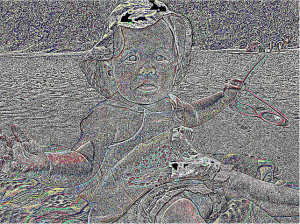
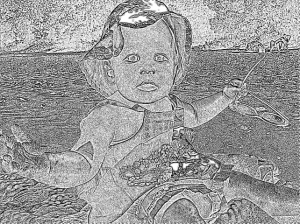
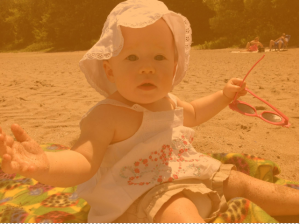
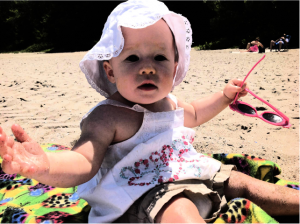
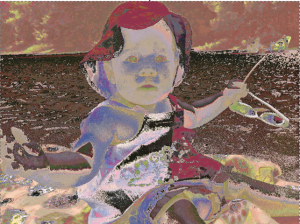
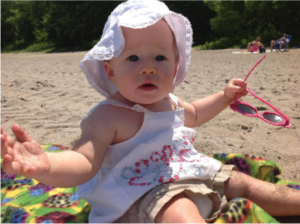
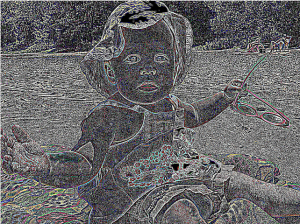
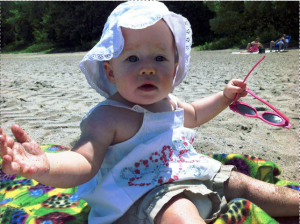
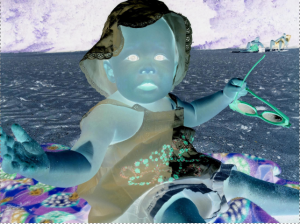
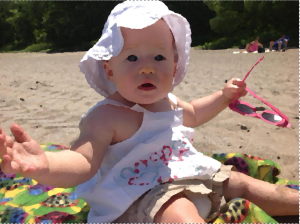
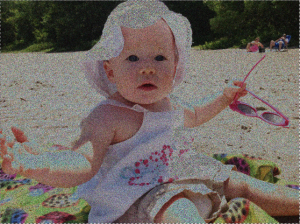
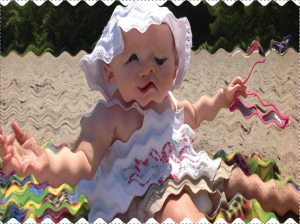
Inkscape Raster Extensions



Thanks for taking the time to produce and educate us on Inkscape.
You are very welcome 🙂 I’m planning on doing the same for Gimp very soon.