 Recently I received a bunch of emails asking how to install java libraries. So, in this tutorial I’ll show you how.
Since I use Eclipse in all of my tutorials, I’ll show you how to install java libraries with Eclipse. I use Eclipse because it is free and looks the same on every operating system.
Specifically I’ll show you how to install the very popular Apache Commons Java Library.
Get Apache Commons Java Library
This is real simple. Go to this page Apache Commons and download and unzip this commons-lang3-3.1-bin.zip.
Install Java Library in Eclipse
Here you’ll see a series of images that will walk you through the installation of the Apache Commons library. As you can see, this series of steps will work for any Java Library.
Of course you need to have Eclipse. I use the version of Eclipse named Eclipse IDE for Java Developers. Now open Eclipse and follow what you see in the pictures below.
Right click on the top most folder in the Eclipse Package Explorer and create a new folder
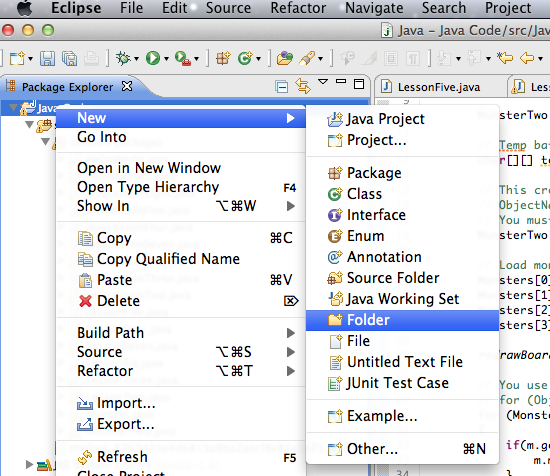
Create a new folder named lib as you see below.

Right click on the top most folder again in package explorer and click import.

Select General and then File System.
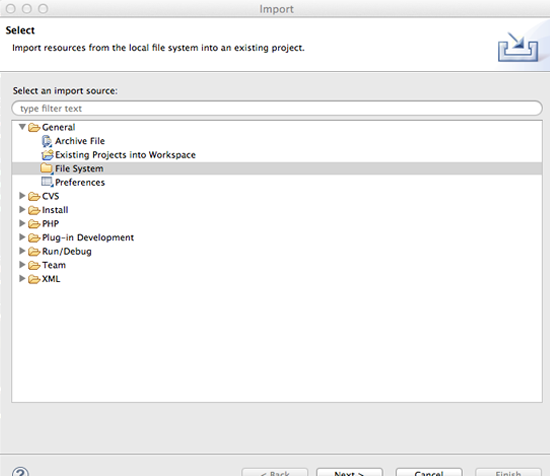
Browse to the location for your Java jar files and select them. Click Finish

Right click on the top most folder again in package explorer and click properties.
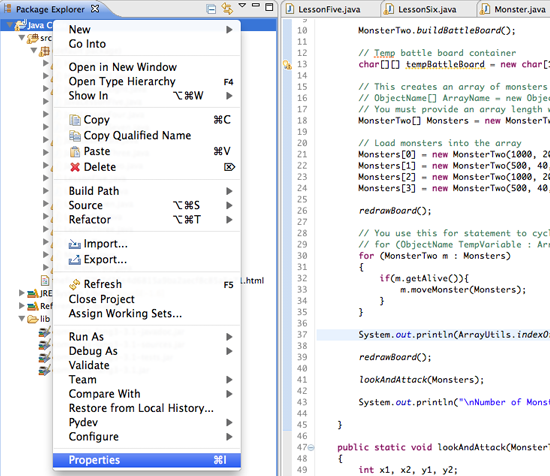
Click Libraries, Add Jars, Select the jar files and hit OK.
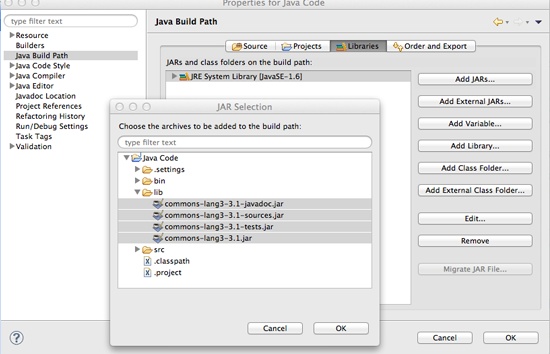
Now if you want to use the Apache Commons library for example, just add the following line of code to your code import org.apache.commons.lang3.*;
That’s it! If you want to learn java, I have a pretty nice Java Video Tutorial.
I hope that helped you out. If you have any questions leave them below.
If you like videos like this tell Google [googleplusone]
To make me extra happy, feel free to share it [nttfblike]
Till Next Time
Sorry… even entering comments produces errors…
I recently downloaded Eclipse ee for java developers. I am only using 1.6. I dont see a need to hassle with 1.7 due to my newness of programming.
When I go to… File>New, the list is blank and shows
I cant assume i have done anything wrong because I just installed it and have not messed with anything.
Thank you in advance,
Matt
Try reinstalling eclipse Indigo. The Juno version (the newest) seems to be buggy. Just search for Eclipse Indigo and you’ll find it. I hope that helps
Hi there — Thanks very much for this.
How do you determine what to include in the import line? In your example, you have:
import org.apache.commons.lang3.*;
For other libraries, how would you figure that out?
Thanks!
The easy thing to do is to let Eclipse tell you what library is needed. If you set up the libraries the right way, Eclipse will do just that. I show you how to do that in How to Install Java Libraries. I hope that helps
hello there, thanks for your nice turorials, I found all of them great!
I wanted to install java library in Netbeans, since I work in Netbeans not Eclipise. Can I just do the same way as you taught here? Thanks again.
Thank you 🙂 Basically you do the same thing, but the interface is different. This page should help NetBeans How To
There are two recommendations that I would like to make to your great set of instructions:
1. At the very beginning: “Create a new Java Project. Name it Java Code.”
2. Just before the import instructions, “unzip the file commons-lang3-3.1-bin.zip”.
Thanks.
There are to suggestions that I would like to make to your great set of instructions.
1. At the beginning add, “Create a new Java project in Eclipse. Call it Java Code.”
2. Before the import instructions add, “unzip the file commons-lang3-3.1-bin.zip
Thanks.
Thank you very much 🙂 I will add those
This is amazing! Your tutorials are clear and more than comprehensible! I’m still mulling over the underrated views you get in YouTube.
Thank you very much 🙂 I don’t care much about views. There are many things that I do that cause me to lose views. For example if I made a bunch of 5 minute videos instead of 25 minute videos that are edited down from 45 minute videos I could quadruple my view count. That doesn’t matter to me. I just do this to help and I don’t care about money
The world need more man like you sir!
Thank you 🙂 You are very kind to say that.
I can find that folder!
Help I don’t know where to look.
Which folder? Sorry I get a ton of questions and I don’t remember everything
Hi Derek, I add the the jar files to the library but every time I try to import the Apache Commons library it says that The import org.apache cannot be resolved. Am I suppose to add the files to the System Library itself?
This should help. You need to add the required jar to your build path.Right click on your project in the Package Explorer,then select Build Path -> Configure Build Path, click on Libraries then click on Add JARs. Now point your required.jar from the Add JARs dialog.
I had the same problem and you probably saved me an hour or two of research with that response. Thanks. I’m enjoying the videos.
Great I’m glad I could help 🙂
For anyone who gets a NoClassDefFoundError when trying to use these, do this.
Thanks for helping 🙂
Thank you very much!
You’re very welcome 🙂
Thanks mate!!!
I was hoping to start learning java
and i found a good tutor. 🙂
You’re very welcome 🙂 I’m glad I could help